A Camgirl show me with her fingers that i should shoot myself down and kicked me out of the room. (2 finger handgun gesture on head boom). Was that allowed and right ?
Did she do something against the CB rules ? I would like to tell her that this was not okay for me and that she should please not do this again to me with a hint to the offical rules part.
In this kind of context, we feel this would be a way of showing ‘boom you’re shot from the room’. Unless there’s more context ie: they actually stated on cam or text in the chat that itmeant something else. We don’t believe this would be a breach of the rules.
Support please unban my account I don’t break any rules. & support also not reverting of my mails.
Please help me . Unban my account or my id proofs so I can make new account .
You need to contact support@chaturbate.com to ask for your account to be unbanned. Please check your spam inbox for any replies, also it can take up to 72 hours for support to reply to emails.
Click on CB-Chat-main.zip and extract to a folder of your choice.
Within the folder you will see the following files:
CB-Chat.html, Style-chat.css, README.md & a folder JS
In the folder JS you will find: cb-chat.js & scroll.js
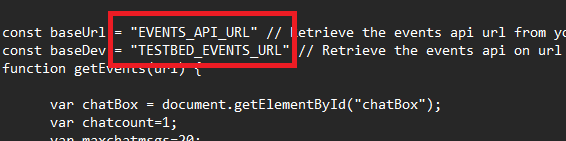
You need to edit the cb-chat.js file for this to work. Open the file up in a text editor program (Notepad or Notepad++ or similar) and look for the following lines at the top:
baseUrl & baseDev
baseUrl is your Events URL from Chaturbate & baseDev is your Events URL from Chaturbate’s testbed.
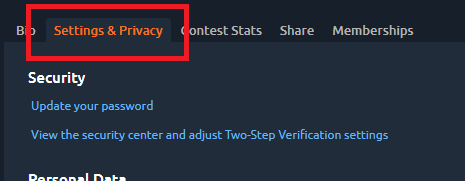
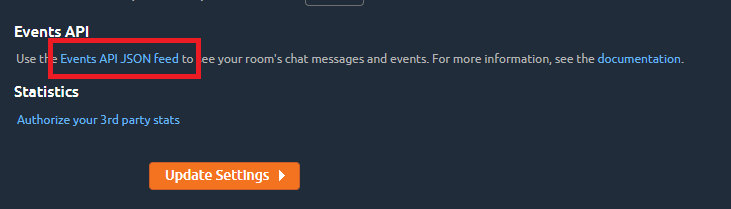
Now visit Chaturbate & open your Profile – then click on Settings & Privacy. Scroll down to the bottom and look for ‘Events API JSON feed‘.
RIGHT CLICK on the Events API JSON feed and select ‘COPY LINK ADDRESS‘
Go back to the cb=chat.js that you have opened in a text editor and paste the URL that you just copied into the “EVENTS_API_URL“
the full url will have YOUR username from Chaturbate & your unique token that is requires for the events to be retrieved from Chaturbate.
DO NOT GIVE OUT YOUR KEY TO ANYONE
The Url gives access to details of private messages in your room & when ever you receive tokens etc.
We can ignore the baseDev as this is only for when you need to test any altered code within this script on the Chaturbate Testbed.
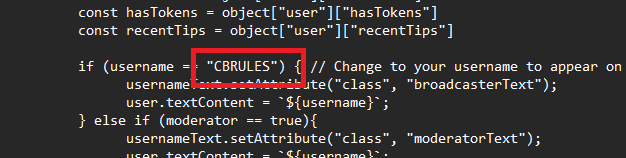
Now scroll down this script and look for ‘CBRULES‘
The line should look like the following approx line 68:
if (username == “CBRULES”) {
Delete CBRULES & replace it with YOUR username (NOT in capslock)
For example the line should now look like:
if (username == “chaturbate“){
We have finished editing the file, so now we can save and exit the text editor.
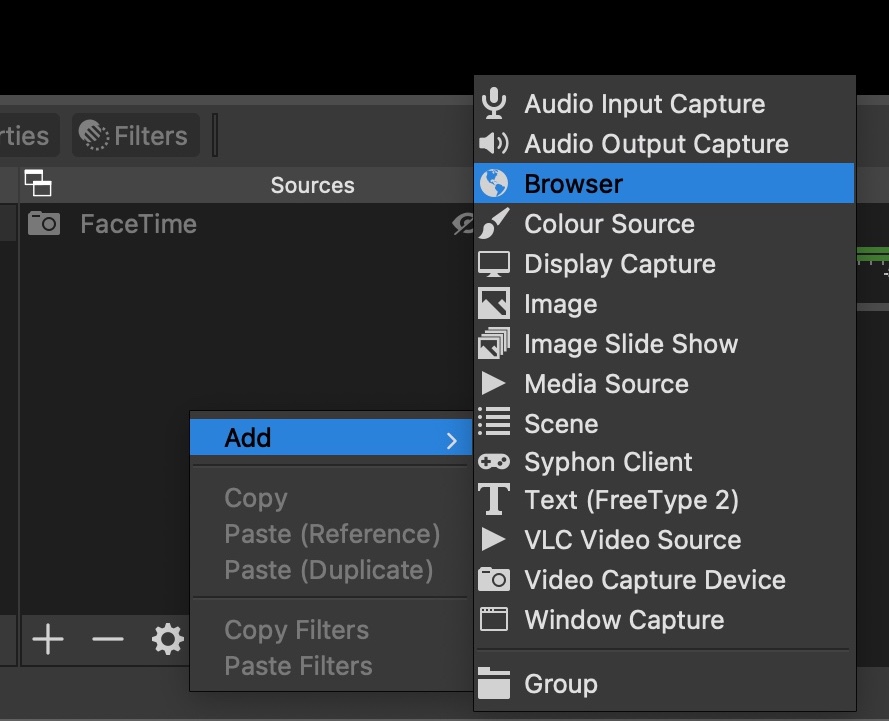
Now open OBS, in Sources right click & select ADD ->> Browser
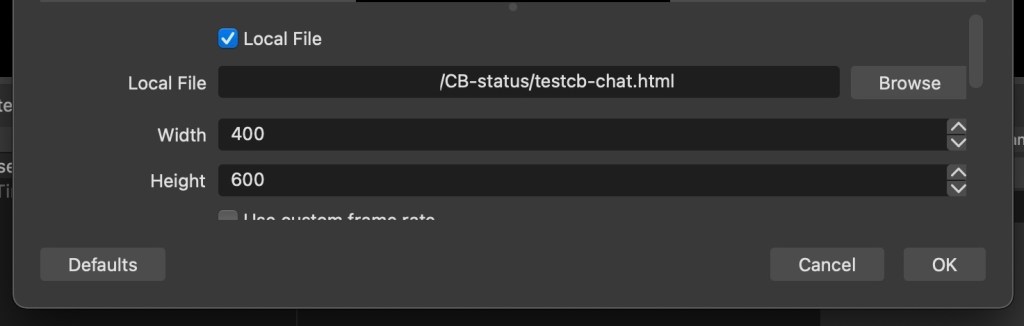
A new window will open, just click OK and you’ll see OBS webpage, Click on ‘LOCAL FILE‘ so that it puts a TICK in the box. Go to the right and select BROWSE.
You now have to browse to where you extracted the above files & select CB-Chat.html
Move down to change Width from 800 to 400.
Click OK which will save the settings you’ve just added. You will now see a BLACK BOX. This is normal so that you can position the box to where you want it.
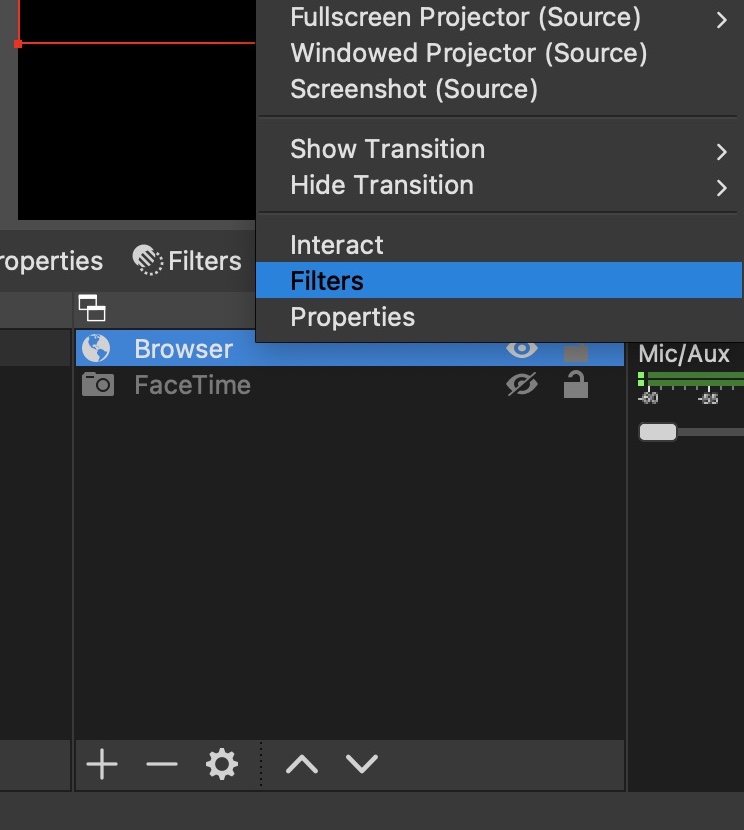
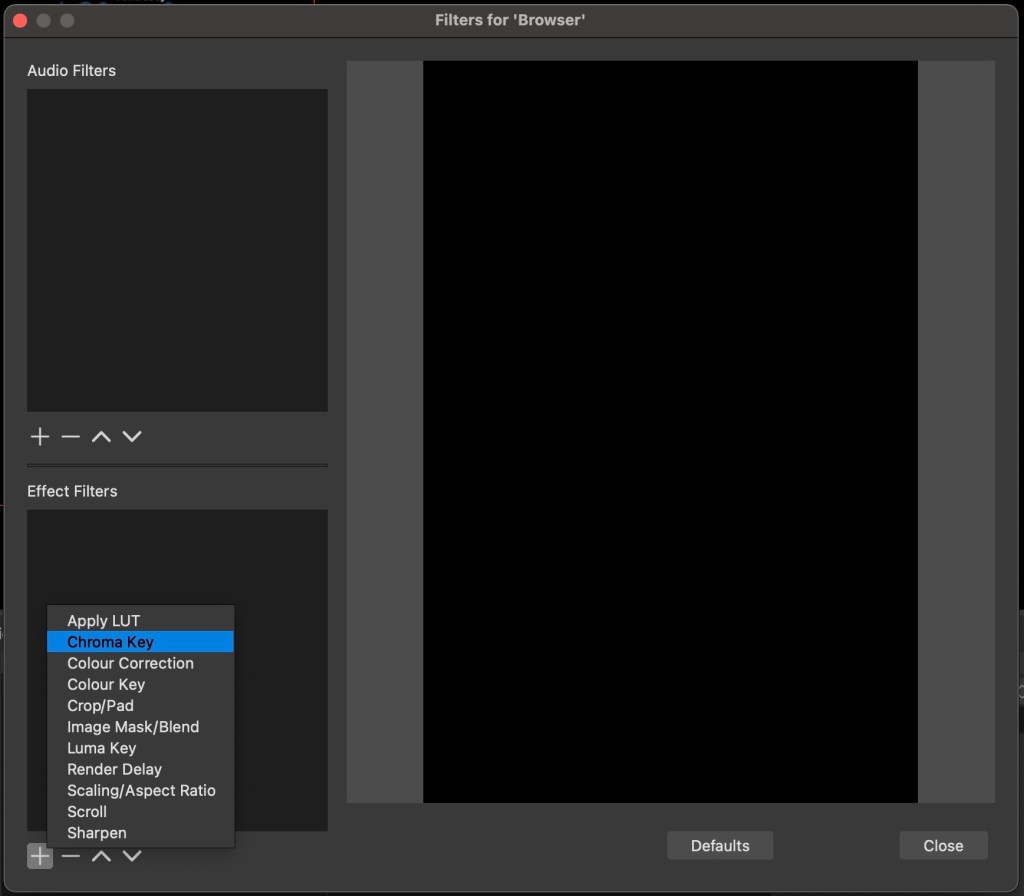
After you are happy where the black box is, Right Click on Browser in the sources section and click FILTERS.
Click the PLUS sign in the EFFECTS FILTERS & select CHROMA KEY & click OK
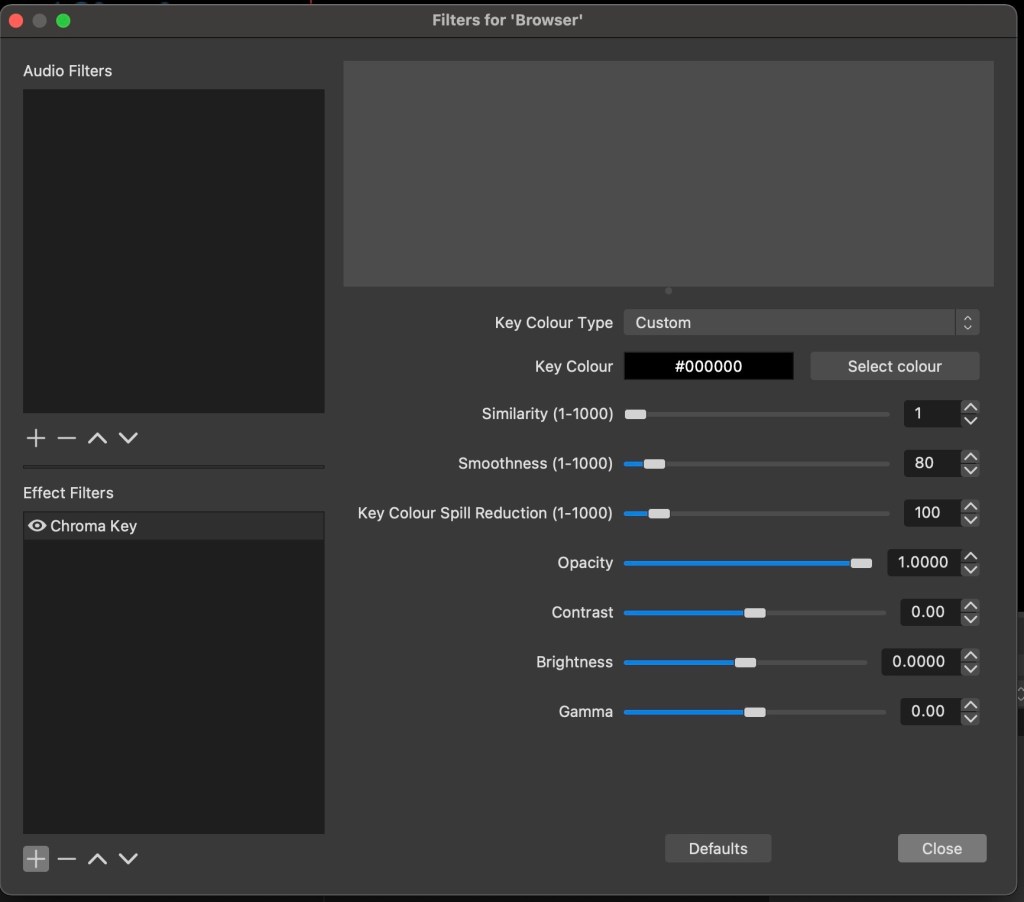
Now in the KEY COLOUR TYPE Select CUSTOM then click on SELECT COLOUR & choose BLACK in the top left corner
The black box should now vanish. Once it has move down to similarity and change the number from 400 to 1. This will make the text from Chaturbate feed to appear.
You can now close the window, OBS is now setup for live chat feed.
How can I easily ‘un-follow’ several hundred broadcasters in my ‘followed’ list? Some….a lot…. have not been on for over 3 years. Deleting one at a time could take many hours of tedious opening each models page. Any help would be greatly appreciated. Thank you,
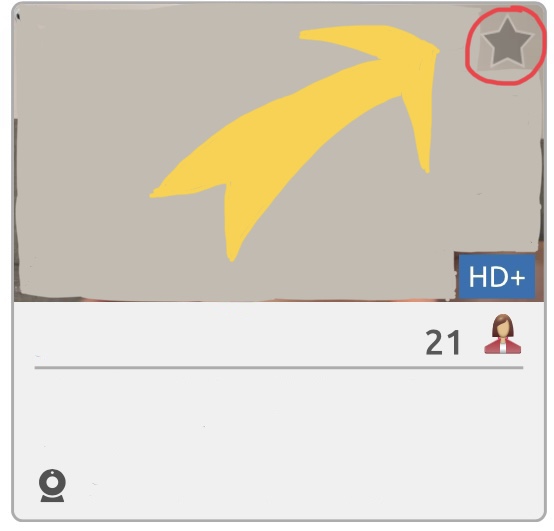
There is an easy way to unfollow profiles from your follow list. There is a ‘Gold / Yellow star on the top right corner of each profile, when you click on this it will fade to a grey star which means that you’re not following them. Clicking on a grey star which changes to gold / yellow star means you’re following them.
CB is an increasingly depressing place for me. It is banning so many broadcasters, and I’ve lost count of those I followed who have been purged in the last couple of months. It’s got me wondering exactly what kind of ‘community standards’ CB thinks it is trying to uphold. Some of CB’s rules are antiquated and do not reflect the values of the majority of its participants, and I can’t imagine the good folks of Lake Forest California are too bothered one way or the other. I’m spending less time (and considerably less money) on CB nowadays, preferring non-USA-based cam sites with less parochial and more liberal regimes.
We can understand the frustration of seeing models being banned on Chaturbate & loosing them if they don’t get unbanned. But what you have to understand is Chaturbate has rules & their terms that everyone has to agree to when using the site. A lot of models that use the site that get banned don’t always admit that they have actually broken the rules while broadcasting or even show the email from Chaturbate stating why they were banned once they have received a reply.
For example one model had received a ban and posted on Twitter they had no idea why they were banned and asking for help. They then published the email reply from Chaturbate stating they were banned for showing weapons while broadcasting.
If any model is unsure if something is not allowed, they can email support@chaturbate.com BEFORE even attempting to do or show while they’re on cam, this will go towards them not being banned as they have checked first.
Just to inform followers of CBRules, Chaturbate have noticed a lot of models / non-models who are verified with custom bio’s that are breaking the profile bio rules (placing adverts, names, etc) over the top of the main Chaturbate layout at the top of the site.
Therefore Chaturbate are from 15th October 2021 are going to force ALL bio’s into the section below the webcam feed.
IF you have any floating icons at the side of the webcam feed, these will not be effected, but everything else will be forced into the bio section.
We have been asked quite a few times from followers what the rules are regarding the bio placements:
The RED boxes are the placements that you need to avoid when creating your custom bio’s.
The site onlyfans.com is going to be removing adult content from its site beginning 1st October due to pressure from their payment processors. This means that if any model has their account publishing pornography in images / videos, their account maybe suspended or even terminated.
Chaturbate in their wisdom have decided they are going to bring forward the launch of a new site peach.com. This site will operate in the same kind of platform that OnlyFans works under.
Their are going to be other sites that are launching at the same time to try and corner this market. but we advise any and all models to move your content from OnlyFans asap, so it will be a smooth transfer of your fans.
CBRules
UPDATE:
As many will know, OnlyFans have scrapped the ban on adult material and have struck a deal behind the scenes to allow adult content.


 CBRules